PreflightPilot
Free · no upload · no account

Print files that pass.

Check your PDF or image for bleed, fonts, colors and resolution – page by page, with the exact spot. What can be fixed safely, PreflightPilot fixes right away: RGB becomes CMYK, missing print information gets added. All in your browser – your file stays with you.

1 · Print product

2 · Your print file

2,551 × 3,579 px incl. bleed
Trim size 210 × 297 mm
300 dpi · 3 mm bleed
Bleed Trim size (cut line) Safety margin

3 · Check your file

Drop an image or PDF here, or click JPG, PNG, WebP, PDF – stays 100 % on your device
–

Print file ready? Order your print from an online printer.

⚠ General guidelines – your printer's own file requirements always take precedence.
LaydoStudio – layout editor for print-ready PDFs

Tip

No layout to test? Or want to rebuild your print file cleanly?

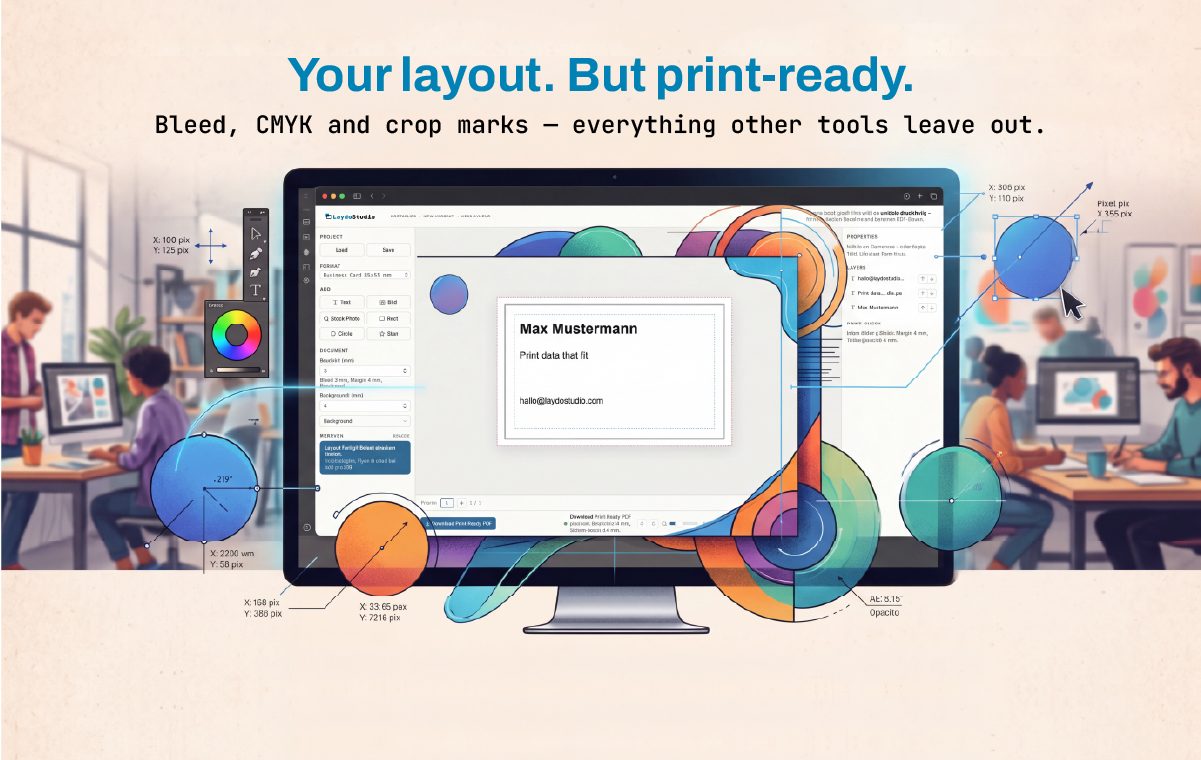
LaydoStudio creates print-ready PDFs right in your browser – with bleed, crop marks, CMYK and PDF/X-4 built in. Even when a file from Word or Canva can't be fixed: import the PDF, extend the background into the bleed, export again. Free, no account.

Open the layout editor →

Why print files get rejected – and what PreflightPilot checks.

/ 01

Not enough pixels

An image that looks great on screen can turn pixelated in print. What counts is the real pixel count compared to the placed size – PreflightPilot calculates it for every image in your PDF.

/ 02

No bleed

Printers cut to the trim size. Without 1/8 inch (3 mm) of bleed past the edge, thin white slivers can appear. PreflightPilot checks page size, trim size (TrimBox) and bleed (BleedBox).

/ 03

RGB instead of CMYK

Screen colors have to be converted for print. PreflightPilot finds RGB images, shapes and text and converts them to CMYK with a real print profile (GRACoL 2013 or FOGRA51).

/ 04

Fonts not embedded

If a font is missing from the file, the printer substitutes another one – line breaks shift. PreflightPilot shows which font is missing and where it's used.

/ 05

Content too close to the edge

Text and logos need distance from the cut line. The safety margin in the report shows the zone where nothing gets trimmed off.

/ 06

Wrong size

A Letter PDF for a half-letter flyer, mixed page sizes, a booklet with 13 pages: PreflightPilot compares every page with the product you selected.

Checking is good. Fixing is better.

Fixes, not just warnings

One click, then re-checked

What can be repaired safely – colors to CMYK, missing print information, PDF/X-4 marking – PreflightPilot does automatically. Then the new file is checked again right away.

No upload

Your file stays with you

Checking and fixing run entirely in your browser. Nothing is uploaded or stored – safe for confidential client files.

In plain English

Every issue explained and located

Each finding jumps to the spot on the page and explains what's wrong. PreflightPilot even recognizes whether your PDF comes from Canva, Word or InDesign, and tells you how to export it correctly there.

Frequently asked questions

How many pixels do I need for a Letter-size print?
For US Letter (8.5 × 11 in) at 300 dpi you need 2550 × 3300 pixels without bleed. With 1/8 inch of bleed on every side it's 2625 × 3375 pixels. Just pick “Letter” above – the tool calculates it for you.
What is bleed?
Bleed is a small margin you add beyond the trim size – usually 1/8 inch (0.125 in) in the US or 3 mm in Europe on every side. The printer then cuts to the trim size. That way there are no unprinted white edges if the cut shifts slightly. More about trim size and bleed.
300 or 150 dpi – which is right?
For anything viewed up close (flyers, business cards, brochures, photos), 300 dpi is the standard. For large formats like posters or roll-up banners viewed from a distance, 150 dpi is often enough. More about print resolution.
Can PreflightPilot convert RGB to CMYK?
Yes. Images, shapes, lines and text in RGB are converted to CMYK with a print profile – GRACoL 2013 for inch-based (US) sizes, FOGRA51 (PSO Coated v3) for millimeter-based sizes. Gray and black become pure black so text prints sharply. Complex gradients stay unchanged and are reported. More about CMYK and RGB.
How can I tell if fonts are embedded in my PDF?
Drop the file into PreflightPilot above: the report lists every font that isn't embedded and marks where it's used. A font can only be embedded in the original program – see how to embed fonts.
My PDF is from Canva – is it print-ready?
Almost. Canva PDFs are RGB and often have no bleed. Download as “PDF Print” with “Crop marks and bleed”, then check it in PreflightPilot: colors and print information are fixed automatically. Guide: make a Canva PDF print-ready.
What is PDF/X-4 – and do I need it?
PDF/X-4 is the standard for print-ready PDFs: fonts embedded, colors with a print profile, trim size and bleed clearly stated. Many printers prefer it. PreflightPilot only marks a file as PDF/X-4 when the re-check is clean. More about PDF/X.
Are my images or PDFs uploaded?
No. Checking and fixing run entirely in your browser. Your file never leaves your device and is not stored or transmitted anywhere. Only the program components (such as the print profile) are loaded from the internet – never your data.

Print glossary: jargon, explained simply.

The terms you'll run into when ordering print – in plain English instead of print-shop speak.

CMYK & RGB
RGB is for screens, CMYK for print – that's why colors often look a little different on paper. Learn more →
Print resolution (dpi / ppi)
How many pixels land on one inch – and why 300 dpi is right for flyers while 150 is often enough for posters. Learn more →
Embedding fonts
Why the font belongs inside the PDF – and how to export it correctly from Word, Canva, InDesign & co. Learn more →
Vector & raster
Raster images can get pixelated when enlarged, vector graphics stay sharp at any size. Learn more →
Trim size & bleed
Your file has to be slightly larger than the finished product – here's why and by how much. Learn more →
Crop marks
Small corner lines that show the cutter where the trim size runs. Learn more →
Safety margin
The invisible zone where text and logos can't get cut off. Learn more →
Paper weight (gsm)
The weight of the paper per square meter – a good hint at how thick and premium it feels. Learn more →
Offset & digital printing
Digital printing pays off for small quantities, offset gets cheaper for larger runs. Learn more →
Print finishing (coating, lamination, foil)
The finishing touch after printing – from matte lamination to spot UV and foil stamping. Learn more →
Spot colors (Pantone)
Predefined colors for tones that can't be mixed exactly from CMYK. Learn more →
Proof
A binding preview check of your colors, on screen or as a real test print. Learn more →
Contour cut / die line
The cutting line for stickers and custom shapes. Learn more →
Fold types (roll fold, Z-fold)
How a leaflet is folded – accordion-style or rolled inward. Learn more →
ICC color profile
Makes sure a color looks the same from screen to press. Learn more →
PDF/X – the print-ready PDF
A PDF that follows fixed rules for printing – preferred by many printers. Learn more →
Print run
The number of copies – often more copies cost only a little more, because setting up the press is the expensive part. Learn more →
Duplex printing (double-sided)
Printed on both sides – the usual pitfall is show-through on thin paper. Learn more →
Line weight & minimum font size
When fine lines and small text fill in during printing – with rules of thumb in points. Learn more →
Make a Canva PDF print-ready
The right download settings in Canva – and what's still missing afterwards. Learn more →
Word to print-ready PDF
What Word can and can't do – and how to still get a usable print PDF. Learn more →
Imposition & sheet size
Why your size affects the price: several copies fit on one press sheet. Learn more →